- Light in front of you, never behind you.
- Clothes in a different colour from the wall, and contrast between you and the background.
- One to two metres between you and the wall, with the phone set down and still.
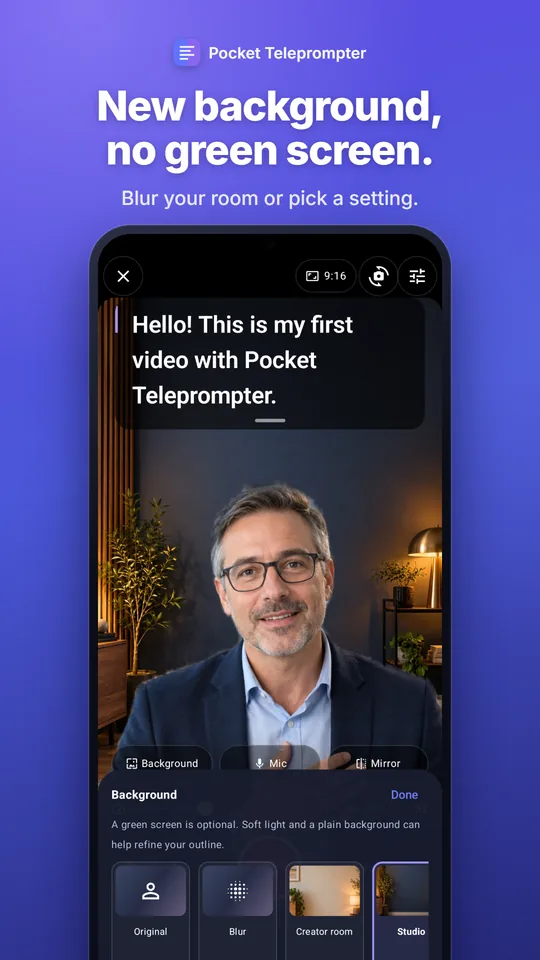
- Blur to stay low-key, replace to change the scene. Test for 10 seconds before the real take.
Blur or replace: which one?
Blur keeps your real room but makes it soft and out of focus. It is the most natural choice: small outline mistakes are barely visible, and the video still feels like home. Ideal for a personal message, a testimonial or an everyday video.
Replacing puts another scene behind you: studio, bookshelves, office… It changes the whole mood, but needs more care, because the edge between you and the scene is more visible. Pick a scene that suits your topic: an office for professional advice, a creator room for a more relaxed video.
1. Light: in front of you, never behind
To separate your outline from the scene, the phone needs to see you clearly. Face a window or a lamp placed behind the phone. Your face and hair are then sharp and well lit.
Never sit with a window behind you: you become a dark shape in front of a very bright background, and the outline starts to shake. The same goes for a lamp switched on right behind you.
2. Contrast between you and the wall
- Wear clothes in a different colour from the wall: a dark top in front of a light wall, or the other way round.
- Avoid a white top in front of a white wall, or dark hair in front of dark furniture: the phone struggles to tell where you end.
- A plain wall helps more than a crowded shelf or a patterned curtain.
- A green screen stays optional: a plain, well-lit wall is often enough.
3. One to two metres between you and the wall
Right against the wall, your shadow and the wall blend into your outline. Step one or two metres forward: the wall gets less light than you, and the difference between you and the background is clearer. It also looks nicer with blur.
4. A still phone and a chest-up framing
Put the phone on a tripod or a steady stand at eye level. Frame from your head down to your chest: it is the framing where the cut-out is cleanest, and the one used for talking-to-camera videos.
- Avoid quick hand gestures in front of your face or near the edges of the frame.
- Very fine or messy hair can flicker at the edges: tie it back or smooth it if it bothers you.
- Avoid holding a see-through or very thin object (a glass, a pen) in front of you.
- Stay in the frame: if you are half out of the picture, the outline gets confused.
5. The 10-second test
- Choose your background
Blur or a scene, the one you plan to use for the real video.
- Record one sentence, moving as usual
Talk and make one or two gestures, as in the real video.
- Check the edges
Hair, shoulders, hands. If the outline shakes, add light in front of you, move away from the wall or change your top.
If a scene does not work, try blur: it is much more forgiving. And if the cut-out still struggles, choose “Original”: a tidy, well-lit room beats a shaky virtual background.
Your own image as a background
A photo of your shop, your classroom, or one in your brand colours: using your own image makes the video recognisable. Choose a photo in landscape or portrait to match the video format, sharp, with no important text near the edges, and taken at eye level so the perspective looks natural behind you.
Quality: what to know
With a virtual background or blur, Pocket Teleprompter records up to Full HD (1080p), plenty for TikTok, Reels, Shorts and YouTube. 4K, on compatible cameras and with Premium, is only possible with the “Original” background.
FAQ
How do I use a virtual background on a video with my phone?
Use an app that replaces the background while you record. In Pocket Teleprompter, tap “Background” on the recording screen and choose “Blur” or a scene, no green screen needed.
How do I blur the background of a video on Android?
Choose the “Blur” background before you film: your room stays visible but soft. Face the light and stand one or two metres from the wall for a clean outline.
Why does the edge of my virtual background flicker?
Most often: light behind you, clothes the same colour as the wall, or a wall too close. Put the light in front of you, change your top and move away from the wall.
Do I need a green screen for a virtual background?
No. A green screen can help, but a plain wall, good light in front of you and contrast with your clothes are often enough for a clean cut-out.
Are virtual backgrounds free?
In Pocket Teleprompter, blur and two scenes (“Creator room” and “Studio”) are free. The other scenes and your own image come with Premium.